 Rohit Gupta
Weather in the Cloud
This is the third post about Merced weather. It started with a static ggplot version of the Tufte-style temperature chart, and last month I turned it into an interactive Shiny app hosted on shinyapps.io. At the end of that post I promised “Weather in the Cloud” and admitted it was mostly for the title pun. The pun is still the main reason. But putting the app in a Docker container and running it on AWS turned out to be a useful exercise, so here are the notes.
The app code is the same as before and lives in the rshiny_weather repo. Nothing in the R code changes for this post apart from one small fix I mention below. What changes is where and how it runs.
Why move off shinyapps.io
shinyapps.io is the easiest way to get a Shiny app online, and I would still point anyone starting out there. My reasons for trying something else:
- Active hours. The free tier gives you 25 active hours a month. That is plenty for a hobby app, but every time someone opens the embedded app the clock runs, and once the hours are gone the app is offline until the next month.
- Cold starts. On the free tier the app goes to sleep when idle, which is why the embed in the last post is sometimes slow to load.
- Control. I wanted to choose the R version, pin package versions, and see the server logs myself.
- Learning. Docker keeps coming up in bioinformatics as a way to make pipelines reproducible, and a tiny weather app is a low-stakes place to practice it along with AWS.
The trade-off is that I now pay for whatever I run, by the hour, and I have to remember to turn it off. More on both at the end.
The plan
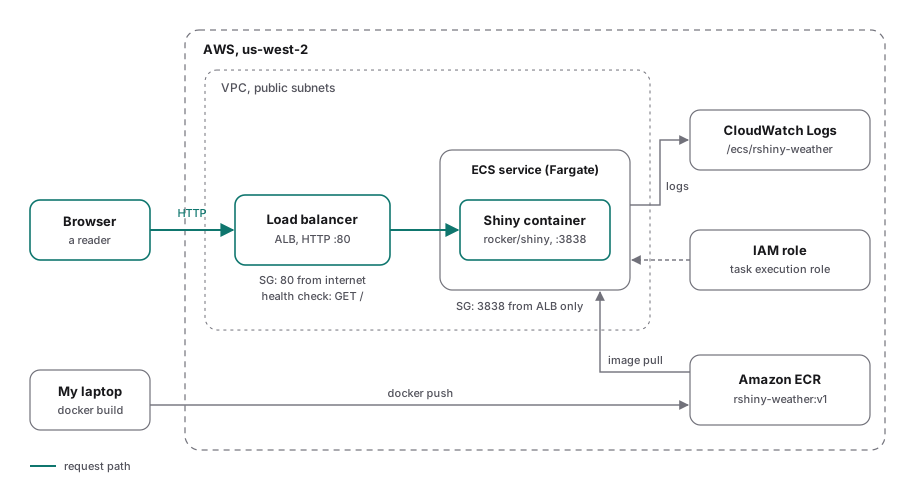
A browser hits an Application Load Balancer, which forwards to the Shiny container running on ECS Fargate; the image comes from ECR and logs go to CloudWatch.
The pieces:
- A Docker image built from
rocker/shiny, with the app’s packages, code and data baked in. - Amazon ECR (Elastic Container Registry) to store the image.
- Amazon ECS on Fargate to run the container without me managing a server.
- An Application Load Balancer (ALB) in front, with health checks.
- CloudWatch Logs for the container output.
If you would rather not deal with ECS, a single EC2 instance with Docker installed also works. I sketch that option near the end.
The app files
The repo has five files that matter:
ui.R                  # layout: slider and two checkboxes
server.R              # calls viztemps() from viz_temps.R
viz_temps.R           # all the dplyr and ggplot2 work
resizeTextGrob.R      # helper grob for text that scales with the plot
merced_15yr_temp.csv  # the NCDC temperature data
Between them they load shiny, dplyr, ggplot2, grid and scales. grid ships with base R, and shiny is already in the rocker/shiny image, so the Dockerfile only needs to install dplyr, ggplot2 and scales.
One thing to check before building: every output id assigned in server.R has to match an output declared in ui.R, here plotOutput("MercedTemps") and output$MercedTemps. Shiny does not complain about a mismatch. It just leaves the plot area blank, and the container will happily serve an empty chart.
Writing the Dockerfile
The rocker project maintains Docker images for R. rocker/shiny sits on top of rocker/r-ver and adds Shiny Server and the shiny package. I pin a version tag rather than using latest, so a rebuild six months from now gets the same R. The versioned rocker images also point CRAN at a dated snapshot, which pins the package versions along with R.
Here is the whole Dockerfile, saved in the root of the repo next to ui.R:
# Pin R and the package snapshot
FROM rocker/shiny:3.5.2

# Packages the app loads (shiny is in the base image, grid ships with R)
RUN install2.r --error dplyr ggplot2 scales

# App code and data, copied by name so nothing else sneaks in
WORKDIR /srv/weather
COPY ui.R server.R viz_temps.R resizeTextGrob.R merced_15yr_temp.csv ./

# Run as the unprivileged user that the base image already has
USER shiny

EXPOSE 3838

CMD ["Rscript", "-e", "shiny::runApp('/srv/weather', host = '0.0.0.0', port = 3838, launch.browser = FALSE)"]
A few notes on the choices:
install2.r --errorcomes from the littler package that the rocker images include.--errormakes the build fail if a package fails to install, instead of quietly producing an image that breaks at runtime.- Copying files by name means things like
.Rhistory, a stray.Renviron, or thersconnect/folder from shinyapps.io deployments never end up in the image. A.dockerignorelisting.gitandrsconnectalso keeps the build context small. - The files stay owned by root, so the
shinyuser can read them but not change them. The app reads its CSV and never writes anything, so it has no reason to be able to change its own code. USER shinymeans the R process does not run as root inside the container. Theshinyuser is created when the base image installs Shiny Server.shiny::runAppinstead of Shiny Server. The image’s default command starts Shiny Server, which starts as root, can host many apps, and writes each app’s R output to log files inside the container. For a container with exactly one app, I find it simpler to run the app directly. Everything R prints then goes to the container’s standard output, which is what Docker and CloudWatch collect.host = '0.0.0.0'matters: the default of127.0.0.1would only accept connections from inside the container.
Building and running locally
From the repo folder:
docker build -t rshiny-weather:v1 .
docker run --rm -p 3838:3838 rshiny-weather:v1
Then open http://localhost:3838. The slider and checkboxes should behave exactly as they do on shinyapps.io. The print() calls in viz_temps.R show up in the terminal where docker run is going, which is a preview of what CloudWatch will show later.
To confirm the container is not running as root:
docker run --rm rshiny-weather:v1 whoami
That prints shiny. Stop the app with Ctrl+C.
Pushing the image to ECR
I use the AWS CLI with credentials for an IAM user (not the root account) configured on my laptop through aws configure. Those credentials live in ~/.aws on my machine and nowhere near the image. I picked us-west-2 (Oregon) as the region. In the commands below, 123456789012 stands for your account ID.
Create a repository:
aws ecr create-repository --repository-name rshiny-weather --region us-west-2
Log Docker in to the registry. With the CLI I have, get-login prints a docker login command, so I wrap it in $( ) to run it:
$(aws ecr get-login --no-include-email --region us-west-2)
Newer versions of the AWS CLI replace this with aws ecr get-login-password --region us-west-2 | docker login --username AWS --password-stdin 123456789012.dkr.ecr.us-west-2.amazonaws.com.
Tag and push:
docker tag rshiny-weather:v1 123456789012.dkr.ecr.us-west-2.amazonaws.com/rshiny-weather:v1
docker push 123456789012.dkr.ecr.us-west-2.amazonaws.com/rshiny-weather:v1
I tag with a version (v1) rather than relying on latest, so a task definition always points at a specific image.
IAM: the task execution role
ECS needs permission to pull the image from ECR and write logs to CloudWatch. That permission belongs to a task execution role, not to anything inside the container. If you have clicked through the ECS console before, you may already have one called ecsTaskExecutionRole. If not, save this trust policy as ecs-trust.json:
{
  "Version": "2012-10-17",
  "Statement": [
    {
      "Effect": "Allow",
      "Principal": { "Service": "ecs-tasks.amazonaws.com" },
      "Action": "sts:AssumeRole"
    }
  ]
}
and create the role with the AWS managed policy attached:
aws iam create-role --role-name ecsTaskExecutionRole \
  --assume-role-policy-document file://ecs-trust.json
aws iam attach-role-policy --role-name ecsTaskExecutionRole \
  --policy-arn arn:aws:iam::aws:policy/service-role/AmazonECSTaskExecutionRolePolicy
The weather app never calls an AWS API, so it does not need a separate task role. If a future version reads data from S3, the right move is a task role with read access to that one bucket, not access keys in environment variables.
The task definition
First, a log group for the container output:
aws logs create-log-group --log-group-name /ecs/rshiny-weather --region us-west-2
A task definition describes how to run the container: image, CPU and memory, ports, logging. Fargate requires the awsvpc network mode and only accepts certain CPU and memory pairings. Half a vCPU with 1 GB is a valid pairing and plenty for this app. Save as task-def.json:
{
  "family": "rshiny-weather",
  "networkMode": "awsvpc",
  "requiresCompatibilities": ["FARGATE"],
  "cpu": "512",
  "memory": "1024",
  "executionRoleArn": "arn:aws:iam::123456789012:role/ecsTaskExecutionRole",
  "containerDefinitions": [
    {
      "name": "weather",
      "image": "123456789012.dkr.ecr.us-west-2.amazonaws.com/rshiny-weather:v1",
      "essential": true,
      "portMappings": [
        { "containerPort": 3838, "protocol": "tcp" }
      ],
      "logConfiguration": {
        "logDriver": "awslogs",
        "options": {
          "awslogs-group": "/ecs/rshiny-weather",
          "awslogs-region": "us-west-2",
          "awslogs-stream-prefix": "weather"
        }
      }
    }
  ]
}
Register it and create a cluster:
aws ecs register-task-definition --cli-input-json file://task-def.json --region us-west-2
aws ecs create-cluster --cluster-name weather --region us-west-2
A Fargate cluster is just a name until something runs in it.
Security groups
Two security groups, one per hop. I used the default VPC, whose subnets are public. vpc-0abc, sg-0alb and friends are placeholders for the IDs the commands return.
# Load balancer: port 80 open to the internet
aws ec2 create-security-group --group-name weather-alb-sg \
  --description "Weather app load balancer" --vpc-id vpc-0abc
aws ec2 authorize-security-group-ingress --group-id sg-0alb \
  --protocol tcp --port 80 --cidr 0.0.0.0/0

# Task: port 3838, and only from the load balancer's security group
aws ec2 create-security-group --group-name weather-task-sg \
  --description "Weather app Fargate task" --vpc-id vpc-0abc
aws ec2 authorize-security-group-ingress --group-id sg-0task \
  --protocol tcp --port 3838 --source-group sg-0alb
The second rule is the important one. Nobody can reach the container directly, even though the task gets a public IP below (it needs one to pull the image from ECR when there is no NAT gateway).
The load balancer and health checks
Create the ALB in at least two subnets in different availability zones, a target group, and a listener:
aws elbv2 create-load-balancer --name weather-alb \
  --subnets subnet-0aaa subnet-0bbb --security-groups sg-0alb

aws elbv2 create-target-group --name weather-tg \
  --protocol HTTP --port 3838 --vpc-id vpc-0abc --target-type ip \
  --health-check-path / --health-check-interval-seconds 30 \
  --healthy-threshold-count 2 --matcher HttpCode=200

aws elbv2 create-listener \
  --load-balancer-arn arn:aws:elasticloadbalancing:us-west-2:123456789012:loadbalancer/app/weather-alb/EXAMPLE \
  --protocol HTTP --port 80 \
  --default-actions Type=forward,TargetGroupArn=arn:aws:elasticloadbalancing:us-west-2:123456789012:targetgroup/weather-tg/EXAMPLE
The ARNs come back in the output of the earlier commands. Some details:
--target-type ipis required for Fargate, because each task gets its own network interface and the load balancer sends traffic to that IP.- The health check requests
/and expects a 200. A Shiny app answers/with its UI page, so this works without adding a special endpoint. If the app crashes, the target goes unhealthy and ECS replaces the task. - WebSockets. Shiny keeps a WebSocket open between the browser and the R session. ALBs support WebSockets, so there is nothing to configure. If an idle session greys out after about a minute, the ALB’s idle timeout (60 seconds by default) is the first thing to check; it can be raised with
aws elbv2 modify-load-balancer-attributesand the keyidle_timeout.timeout_seconds. - More than one task. Each Shiny session lives in one R process. With a single task that is fine. If you scale to two or more, turn on stickiness on the target group so a browser keeps talking to the same container.
- HTTPS. I stuck with HTTP for a public weather chart. For anything with logins, add an HTTPS listener with a certificate from AWS Certificate Manager.
The service
The service keeps the desired number of tasks running and registers them with the target group:
aws ecs create-service --cluster weather --service-name weather-svc \
  --task-definition rshiny-weather:1 --desired-count 1 --launch-type FARGATE \
  --network-configuration "awsvpcConfiguration={subnets=[subnet-0aaa,subnet-0bbb],securityGroups=[sg-0task],assignPublicIp=ENABLED}" \
  --load-balancers "targetGroupArn=arn:aws:elasticloadbalancing:us-west-2:123456789012:targetgroup/weather-tg/EXAMPLE,containerName=weather,containerPort=3838" \
  --health-check-grace-period-seconds 60 \
  --region us-west-2
--health-check-grace-period-seconds gives R time to start and load packages before the load balancer’s health checks count against the task. Once the target shows as healthy, get the address:
aws elbv2 describe-load-balancers --names weather-alb \
  --query 'LoadBalancers[0].DNSName' --output text
Paste that DNS name into a browser and the app is there. To deploy a new version later: build, tag v2, push, register a new task definition revision pointing at v2, and run aws ecs update-service --cluster weather --service weather-svc --task-definition rshiny-weather:2. ECS starts the new task, waits for it to pass health checks, and then drains the old one.
Logs in CloudWatch
Because the app writes to standard output and the task uses the awslogs driver, everything ends up in the /ecs/rshiny-weather log group. Streams are named weather/weather/<task-id>, from the stream prefix, the container name and the task ID. In the console it is under CloudWatch, Logs. From the command line:
aws logs filter-log-events --log-group-name /ecs/rshiny-weather \
  --filter-pattern "Error" --region us-west-2
When a task fails to start at all, the reason is usually in aws ecs describe-tasks under stoppedReason. The two I would check first are a missing log group and an execution role without permission to pull from ECR.
Security basics, in one place
- No credentials in the image. The Dockerfile copies five named files. AWS keys stay in
~/.awson my laptop, and nothing inside the container needs them. - IAM roles, not keys. ECS pulls the image and writes logs through the task execution role. If the app ever needs AWS access, give it a narrow task role.
- Security groups. The internet reaches only port 80 on the load balancer. The container accepts 3838 from the load balancer’s security group and nothing else.
- Non-root container. The R process runs as
shiny, and the app files are read-only to it. - An IAM user for the CLI, not the root account, ideally with MFA turned on.
What it costs
I am not going to quote numbers, because they vary by region and change over time. Check the pricing pages for Fargate, Elastic Load Balancing, ECR and CloudWatch. The shape of the bill:
- Fargate charges for the vCPU and memory you request, for as long as the task runs. A service with
desired-count 1runs around the clock, whether or not anyone looks at the chart. - The load balancer charges per hour it exists, plus a usage component.
- ECR charges for image storage. R images are not small, so delete old tags you no longer need.
- CloudWatch Logs charges for data ingested and stored. Setting a retention period on the log group keeps that from growing forever:
aws logs put-retention-policy --log-group-name /ecs/rshiny-weather --retention-in-days 14. - Data transfer out to the internet is billed too, though a chart like this does not move much data.
The AWS free tier for new accounts covers some EC2 and load balancer hours, but Fargate is not part of it, so check the free tier page for your account. Also set up a billing alarm or an AWS Budget before you start, so a forgotten service shows up as an email instead of a surprise.
The single EC2 instance alternative
If the ALB plus Fargate setup feels like a lot for one chart, the same image runs on a single EC2 instance. Launch a small Amazon Linux 2 instance with an instance profile that can read from ECR, install Docker, log in to ECR the same way as above, and run:
docker run -d --restart unless-stopped -p 80:3838 \
  123456789012.dkr.ecr.us-west-2.amazonaws.com/rshiny-weather:v1
Open port 80 in the instance’s security group and keep SSH limited to your own IP. You give up automatic replacement of unhealthy tasks and rolling deploys, and you are now responsible for patching the instance. For logs, Docker’s awslogs log driver works on EC2 as well, given the right permissions on the instance profile.
Tearing it all down
When I am done showing it off, this is the order that leaves nothing billing. Replace the placeholder IDs and ARNs with yours.
# 1. Stop the task, then delete the service
aws ecs update-service --cluster weather --service weather-svc --desired-count 0
aws ecs delete-service --cluster weather --service weather-svc

# 2. Load balancer pieces
aws elbv2 delete-load-balancer \
  --load-balancer-arn arn:aws:elasticloadbalancing:us-west-2:123456789012:loadbalancer/app/weather-alb/EXAMPLE
aws elbv2 delete-target-group \
  --target-group-arn arn:aws:elasticloadbalancing:us-west-2:123456789012:targetgroup/weather-tg/EXAMPLE

# 3. Cluster and task definition
aws ecs delete-cluster --cluster weather
aws ecs deregister-task-definition --task-definition rshiny-weather:1

# 4. Image repository (--force also deletes the images in it)
aws ecr delete-repository --repository-name rshiny-weather --force

# 5. Logs
aws logs delete-log-group --log-group-name /ecs/rshiny-weather

# 6. Security groups, once the load balancer and tasks are gone
aws ec2 delete-security-group --group-id sg-0task
aws ec2 delete-security-group --group-id sg-0alb
Deleting the load balancer also removes its listener. The security groups can take a few minutes to free up after the load balancer’s network interfaces disappear, so if step 6 fails, wait and run it again. The same goes for delete-cluster while the service is still draining. If you created ecsTaskExecutionRole only for this, detach the policy and delete the role too. Finally, open the Billing dashboard a day later and confirm that the ECS, ELB and ECR lines have stopped growing.